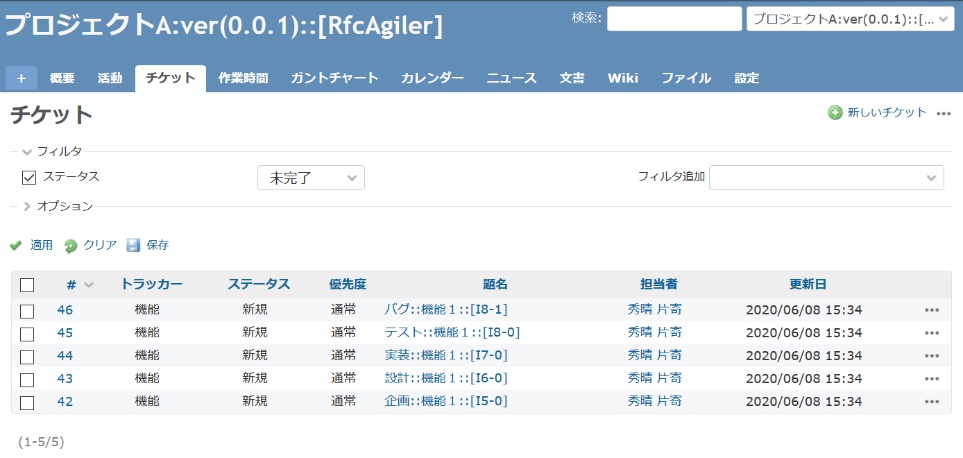
 1.First, register a Redmine ticket by yourself
I will explain how to distribute the project steps and register Redmine
tickets by yourself.
Once the members have been decided, we will also
explain
how to transfer your process to them.
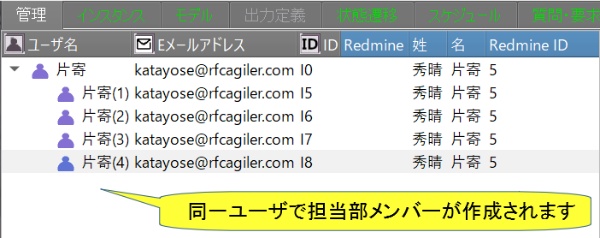
Add a user on the admin screen (here, there is only one user, so add
yourself)
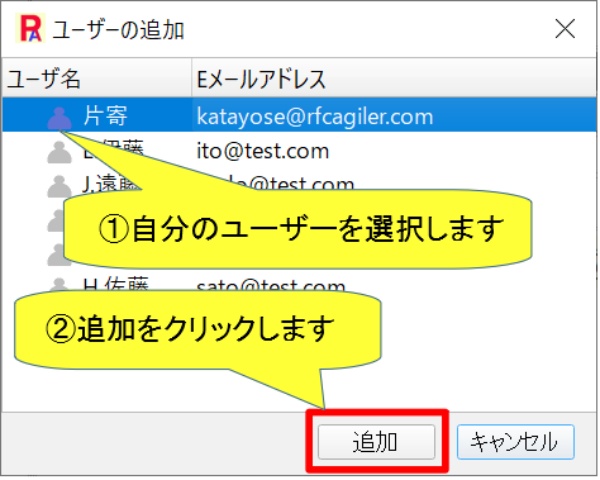
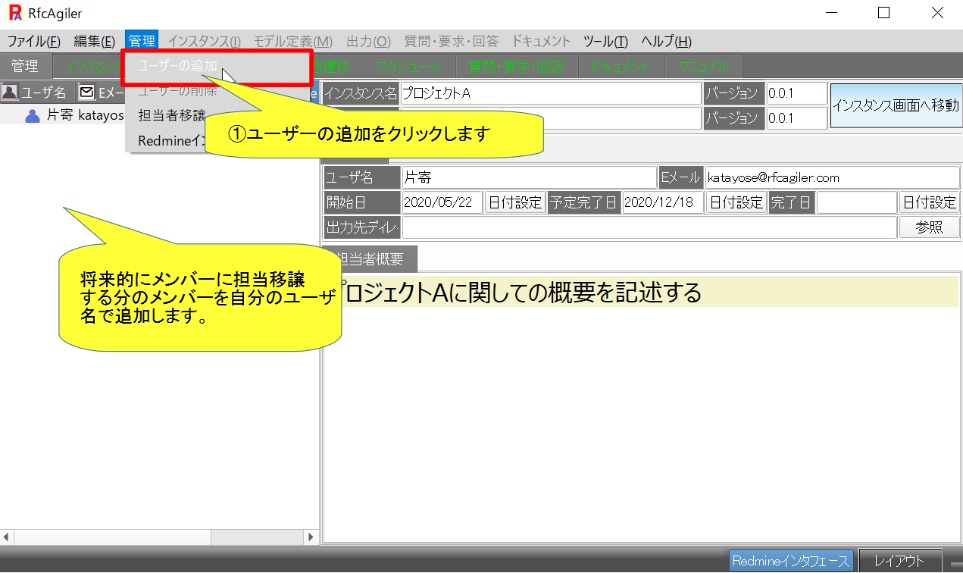 Add your own user
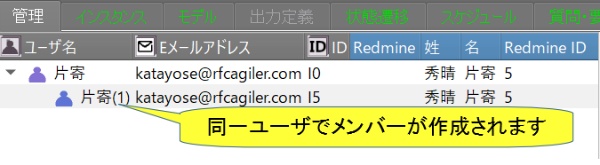
 Members of the same user will be added.
 In the same way, add the required number of man-hours for the project.
 Go to the instance screen and create an instance Lclass based on the model
template,
Go to the instance screen and create an instance Lclass based on the model
template,
similar to the basics version 6.
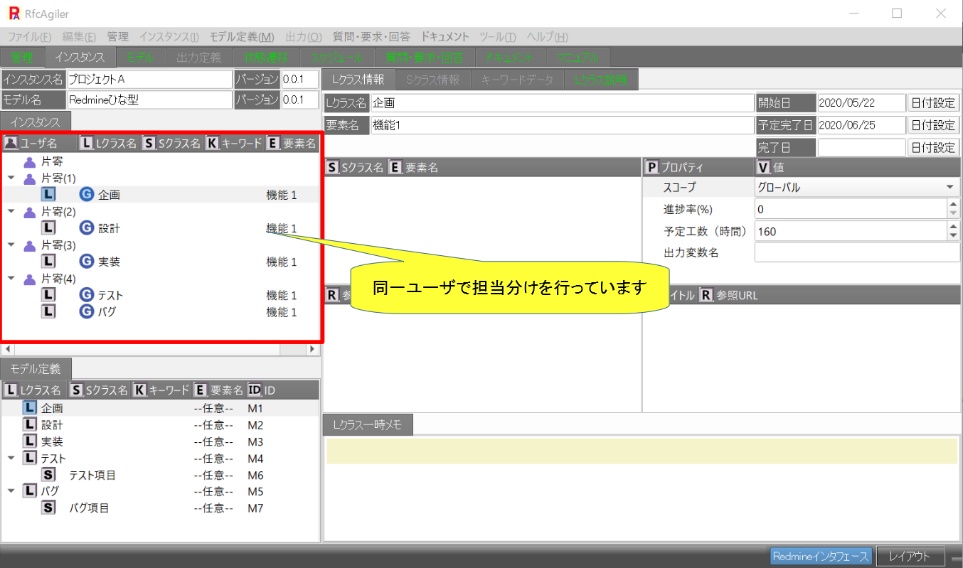
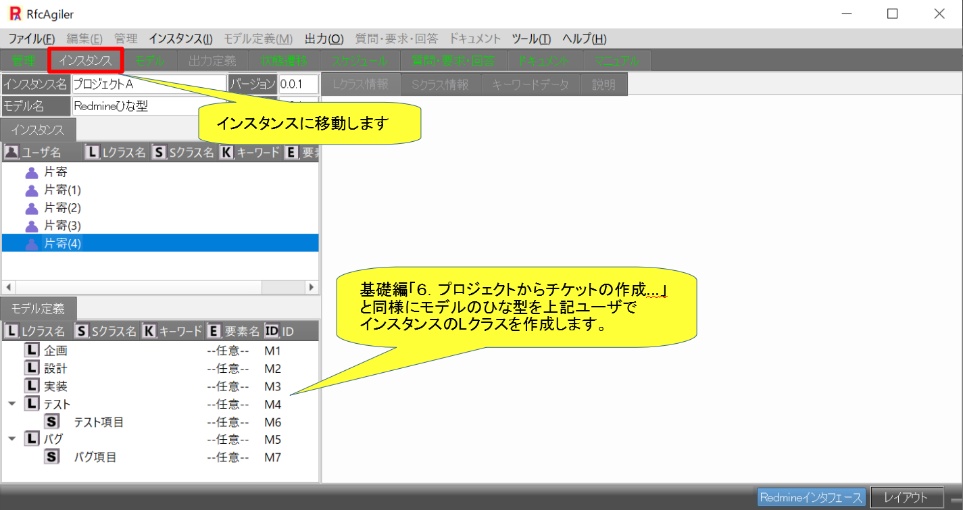 For creating an instance L class, refer to Basic version6.
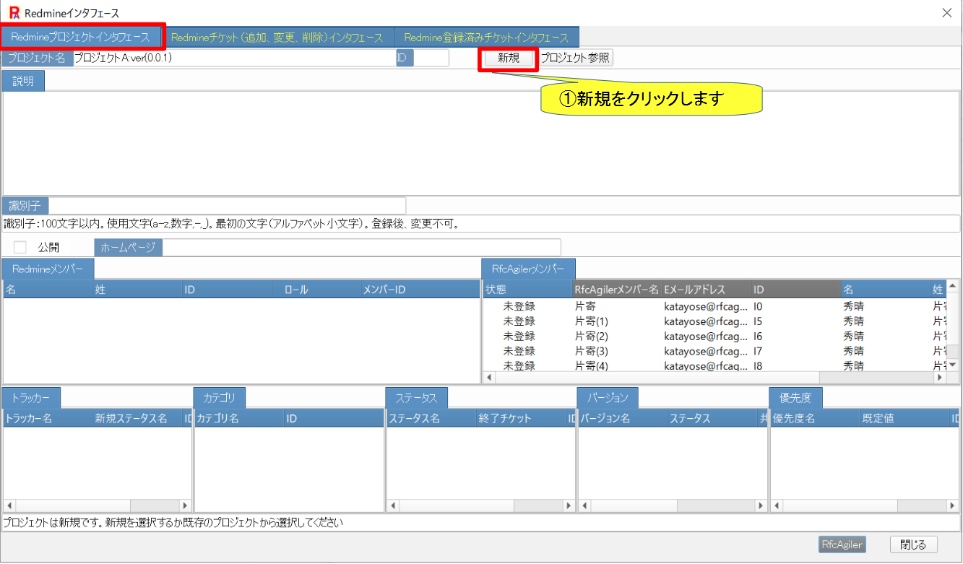
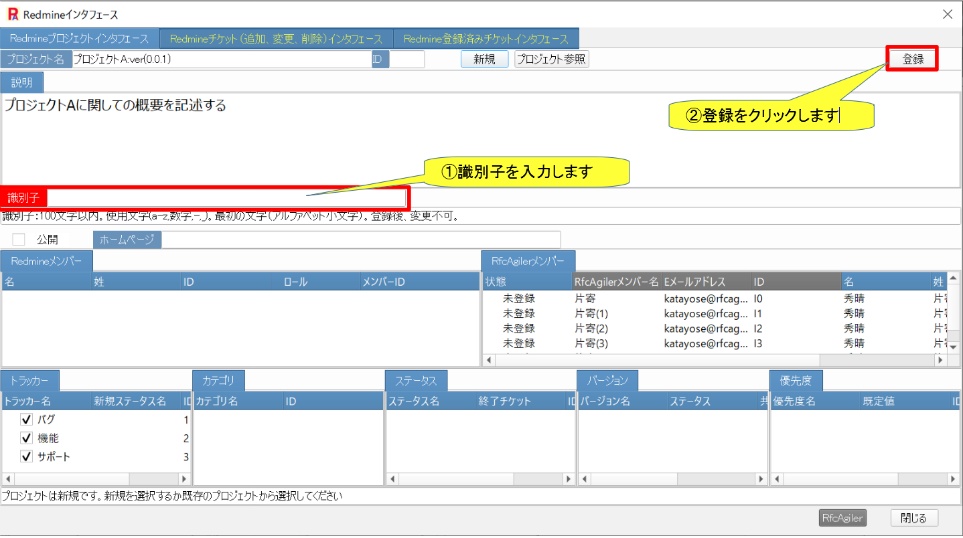
 Click "Redmine Interface" to create a new Redmine project.
Click New.
 The identifier will turn red, so enter the identifier and click "Register".
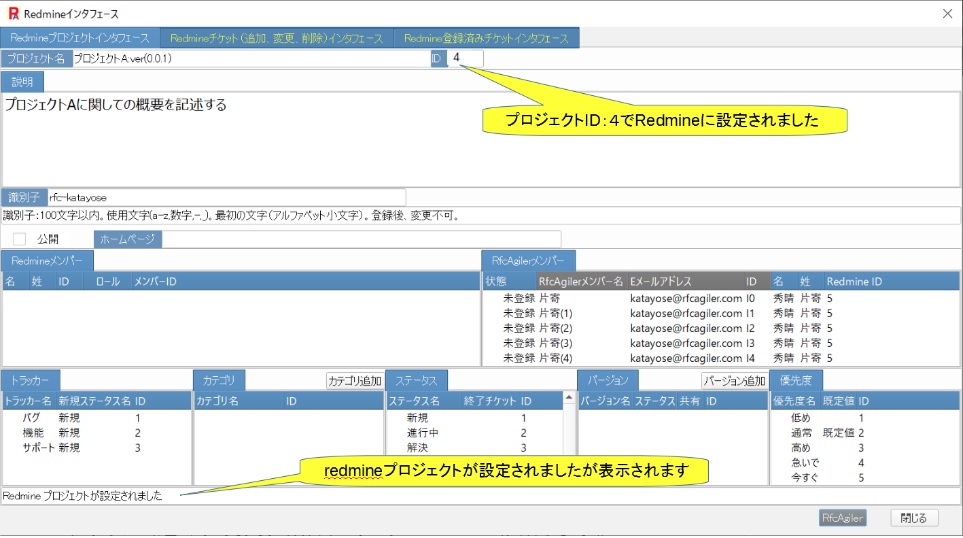
 Registered in Redmine with ID:4.
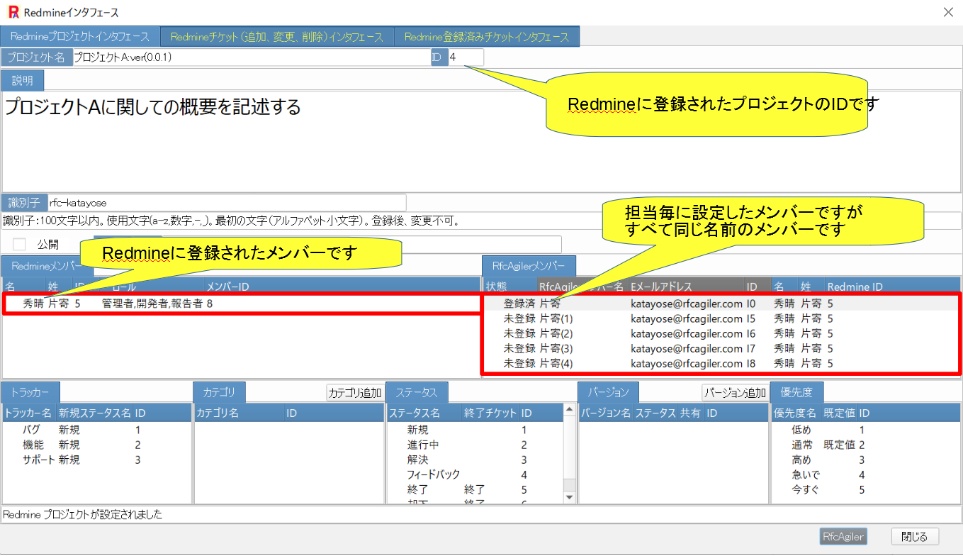
 After making the new settings, set "Katayose" from the RfcAgiler members as
a Redmine member.
After making the new settings, set "Katayose" from the RfcAgiler members as
a Redmine member.
 Next, create a new Redmine ticket.
Go to the Redmine ticket (add, change, delete) interface.
Next, create a new Redmine ticket.
Go to the Redmine ticket (add, change, delete) interface.
 A new ticket will appear and select your tracker.
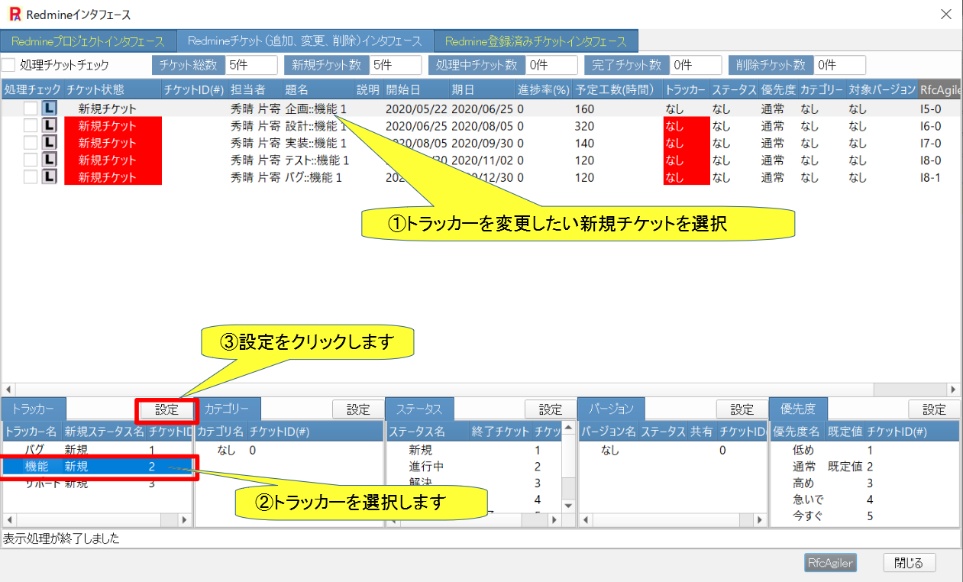 A message will be displayed asking whether you want to process
the same
tracker all at once or just one.
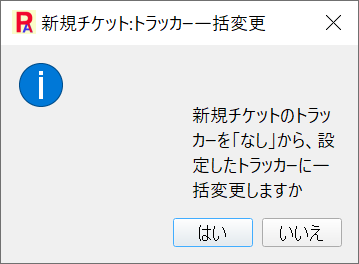 Click "Yes" to perform batch processing.
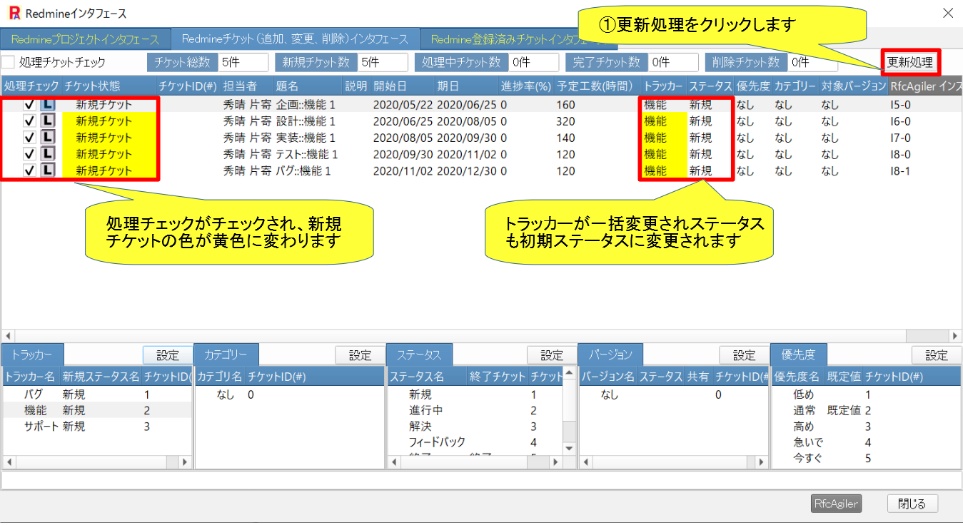 Click “Update Process” to register to Redmine.
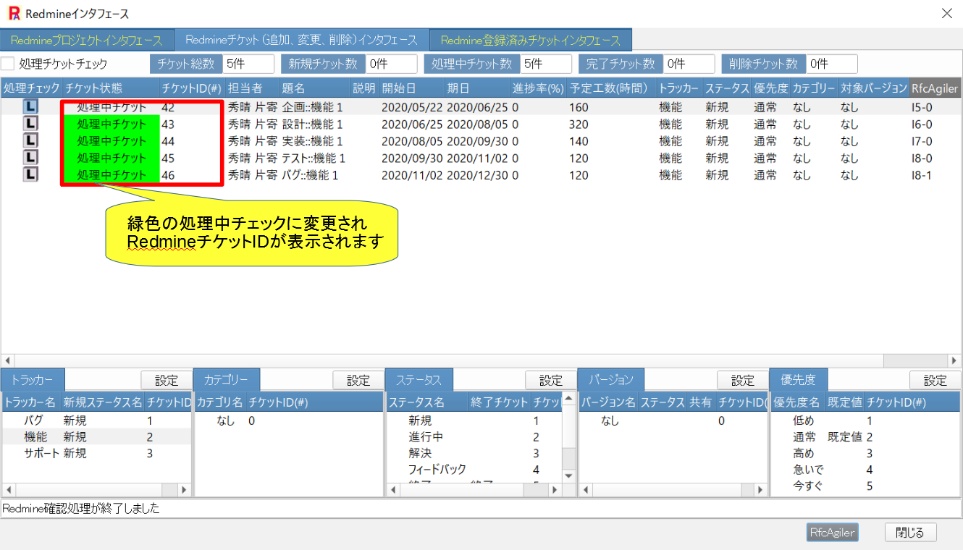 View Redmine tickets.